
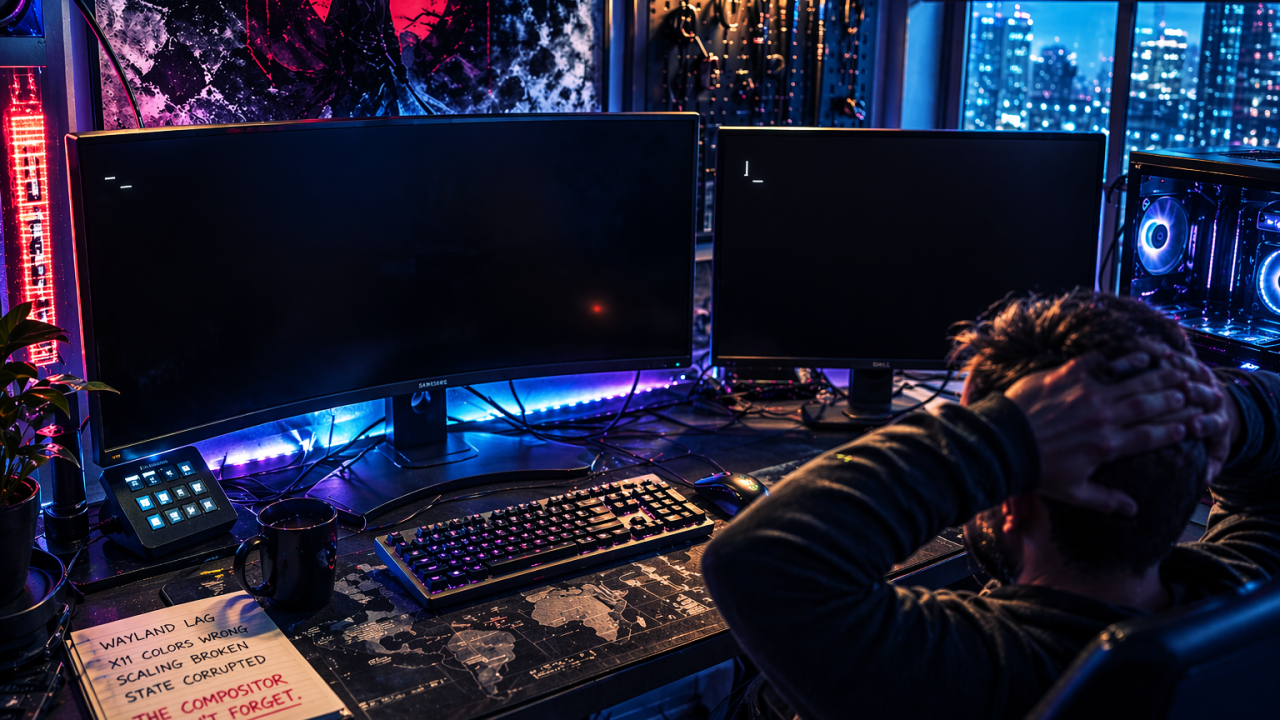
After Hours | Gaming, Linux, and the Persistence of Broken State
All I wanted was two things.
Smooth performance when I was gaming. And colors that actually looked right on screen.
That was the entire goal tonight. Not a system overhaul. Not a new distro. Just two things a modern Linux desktop with two monitors should be able to handle without turning into a puzzle box.
A couple of hours later I was looking at two black screens, a login loop, and a blinking cursor on a terminal I could barely reach. Twice. Once when the disaster first hit, and again a little while later when I thought I'd already fixed it.
This is how it happened — all of it, not the cleaned-up version. And if you run Linux with more than one monitor, it's worth reading. Most of it is stuff no one tells you until you've already broken something.
The Setup
Garuda Linux. AMD Radeon RX 7800 XT. Two monitors: a Samsung ultrawide on DisplayPort, a Dell 4K on HDMI. Different resolutions, different refresh rates, different scaling factors. KDE Plasma on top, running Wayland by default.
On paper, this is a gamer's dream setup.
In practice, it's a compositor minefield.
Maybe It's Wayland
The problem started as input lag during games. Stutter. Micro-pauses. That "feels off" responsiveness you can't quite measure but you absolutely notice.
I started with the obvious stuff.
Checked the CPU governor:
cat /sys/devices/system/cpu/cpu0/cpufreq/scaling_governor
It was sitting on powersave. Flipped it to performance. Helped a little. Not enough.
Adjusted compositor settings. Changed latency preferences. Tested with VRR on and off. Ran the games on different configurations. Nothing moved the needle enough to call it fixed.
So I went looking at the display server itself. Everyone online says Wayland is the future but X11 still has the edge for gaming. Fine. I'd switch sessions, confirm or deny, and move on.
Except when I got to the login screen, there was no X11 option.
Garuda ships Wayland-only by default.
Installing X11
I ran:
sudo pacman -S plasma xorg xorg-xinit sddm
Immediately got hit with package conflicts. The system already had xorg-server-git installed — a bleeding-edge version — and the stable xorg-server I was pulling in wanted to replace it. Pacman threw warnings about removing the git version and overriding a few other xorg components along the way. I let it go through. The warnings looked like the kind of messy install conflicts you see on a rolling-release distro all the time. Annoying, not fatal.
That was the actual mistake. Not ignoring a warning — the warning was just telling me things would be messy, which they always are on Arch. The mistake was that I never stopped to research what those replacements meant for a system that was still going to spend most of its life on Wayland.
The stable xorg-server pacman pulled in brought a chain of dependencies with it, and some of those quietly replaced pieces Wayland was still relying on. I didn’t know that yet. I wouldn’t find out until later, when the system started breaking in ways that didn’t make sense.
What I did see immediately was that the install finished and the login screen still didn't offer an X11 session. Had to reboot. Had to restart SDDM a few times. Got screen flashing and taskbar glitching on the Wayland side that hadn't been there before. Tried to drop to a TTY with Ctrl + Alt + F2 to clean it up manually and got a black screen with an X-shaped cursor.
Eventually the X11 session showed up at the login screen and I moved on, assuming the weird side effects would settle. They didn't settle. They just waited.
X11 Works. Sort Of.
I logged into Plasma (X11). Launched a game.
Framerate jumped. Input lag cleaned up. The lag problem was real and the display server was part of it.
Then I alt-tabbed back to the desktop and everything looked wrong.
Colors were oversaturated and crushed. Like someone had swapped my monitors for cheap showroom TVs running demo mode — that hyper-boosted, neon-tinted picture that makes every image look cartoonish. Skin tones were chalky. Dark scenes had no depth. The games I'd gone to X11 to fix now looked worse than they had on Wayland.
Per-monitor scaling also broke. X11 forced both displays to the same scaling factor. Either the 4K looked fine and the ultrawide had icons the size of postage stamps, or the ultrawide looked fine and the 4K had icons the size of buttons on a children's toy.
The exact thing I'd gone to X11 to fix was now broken in a different way.
The Color Rabbit Hole
I spent a chunk of time trying to fix the color.
KDE's built-in color management did nothing useful. There was no meaningful configuration surface for per-monitor ICC profiles the way Wayland exposed it.
colord via the CLI:
colormgr get-devices
colormgr device-add-profile
colormgr device-make-profile-default
Got back: profile id does not exist. Then: The profile was not added in time. Over and over, no matter which order I ran the commands in.
ICC profiles manually: I went hunting for the built-in sRGB profile:
find /usr/share/color/icc -iname "*srgb*.icc"
Found it. Tried to import it:
colormgr import-profile /usr/share/color/icc/colord/sRGB.icc
Same failure. The profile was not added in time.
DisplayCAL / Argyll: I tried forcing the profile directly with dispwin:
dispwin /usr/share/color/icc/colord/sRGB.icc
It loaded but threw warnings about VideoLUT mismatches and missing vcgt tags. The profile was being applied but nothing on screen changed. Then I tried running an actual calibration with dispcal:
dispcal -v -d 1 -o ~/monitor.icc
No instrument at port 1.
It wanted a colorimeter. I don't own a colorimeter. You can't calibrate a monitor you can't measure.
That was where I gave up on X11.
Performance: fixed. Color: unfixable without buying hardware. Scaling: hostile. Back to Wayland.
Finding the Real Problem
Back on Wayland, colors correct, scaling correct, input lag back. I ran one more test before assuming Wayland was the root cause.
I disabled the Dell monitor. Just turned it off at the button.
Launched the same game.
Smooth. No stutter. No input lag. Full framerate.
That's when I understood what was actually happening. Wayland wasn't slow. The multi-monitor compositor on Wayland, with two displays that shared nothing in common, was slow. Different resolutions, different refresh rates, different scaling — KDE was burning cycles every frame trying to synchronize two monitors that had nothing to synchronize around.
The fix was obvious. Single monitor for gaming. Both for work. Flip between the two.
The Script
I wrote a little shell script to do the toggle for me. Disable the Dell, do my gaming, run it again to re-enable. Pure convenience. The tool is called kscreen-doctor. KDE ships it. Disable a monitor. Enable a monitor. Set a position. On paper, exactly what I needed.
Listed my outputs:
kscreen-doctor -o
Got the two display names — DP-4 for the Samsung, HDMI-A-5 for the Dell. Wrote the script. Ran it.
It disabled the Dell. Great. Ran it again to re-enable.
And the monitors entered mirror mode. Same image on both. Cloned. No GUI option to turn it off. The positions had been wiped when the Dell came back, and KDE had defaulted to "stacked on top of each other" — which the compositor renders as a mirror.
I tried to fix it with positioning commands:
kscreen-doctor output.DP-4.position 2560,0
kscreen-doctor output.HDMI-A-5.position 0,0
Got:
Unable to parse arguments
Tried variations. Different flags. Different output names. Same error every time.
It wasn't my syntax. The build of kscreen-doctor on my system didn't support positioning at all. I didn't know that yet, though. So every variation I tried was a partial state write to a config file I wasn't looking at, scrambling the layout a little more each time.
Hand-Running the Script Into the Ground
When the script didn't behave, I did what I always do — started running the lines by hand, one at a time, watching what each one actually changed.
The problem was that the Dell was already off from the first script run. I kept issuing commands assuming both monitors were active. They weren't. So when I ran a reset sequence that disabled outputs to "start clean":
kscreen-doctor output.DP-4.disable
kscreen-doctor output.HDMI-A-5.disable
…I wasn't resetting anything. I was killing the only remaining display.
Both monitors went dark. No signal. GPU still running. OS still running. Desktop still running. Just nobody home to render anything to.
Wayland was now a headless session — a full graphical desktop drawing into a void.
TTY Recovery That Didn't
Ctrl + Alt + F2. Black screen. X cursor. No prompt.
Ctrl + Alt + F3. Same.
Eventually one of the TTYs gave me a faint terminal prompt. I tried to re-enable a monitor from there:
kscreen-doctor output.DP-4.enable
could not connect to display
Of course. kscreen-doctor needs a running Wayland session to talk to. I didn't have one — that's the entire problem.
I restarted the display manager:
sudo systemctl restart sddm
sudo systemctl start sddm
Got a login screen. Tried to log in. Black screen. Back to login screen. Tried again. Black screen again.
Login loop.
Here's what I didn't understand until later. Wayland's display state is persistent. Every time you change a monitor layout, KDE saves that configuration to disk. On the next login, Wayland reads it and tries to restore your setup. If the saved config is corrupted — because, say, you ran a dozen partial commands the CLI didn't fully understand — Wayland will happily load the broken state and refuse to draw anything.
It will do this every single time you log in.
The compositor doesn't forget. Every reboot was the system faithfully restoring the configuration I'd poisoned.
Recovery, Part One
I caught the session selector at the right moment on one of the login attempts and picked Plasma (X11) — not to use permanently, but as a rescue environment. X11 reads a completely different configuration. It had no idea what Wayland had done to itself.
Desktop came back. I had control again.
Wiped what I thought was the problem:
rm -rf ~/.local/share/kscreen/*
rm -f ~/.config/kwinoutputconfig.json
Restarted SDDM. Logged back into Wayland. Monitors came up. Scaling was right, colors were right, layout was right.
I thought I was done.
I was not done.
Recovery, Part Two
Within a few minutes, Wayland crashed right back into headless mode.
Same black screen. Same cursor. Same login loop. The config wipe had cleared the obvious state, and for those first few minutes everything drew correctly. But when KDE rebuilt its configuration, it was rebuilding against the xorg packages I'd installed earlier — the ones that had quietly replaced pieces of my Wayland stack. Every clean rebuild was pulling in the wrong components and poisoning itself all over again.
Back into X11 as the lifeboat, for the second time. This round I went after the actual source. Deleted the remaining KDE display configs buried in the other directories I hadn't checked. Then pulled out the xorg packages I'd installed earlier — the ones that had been overriding my Wayland stack the whole time.
Restarted SDDM. Logged into Wayland.
It held.
Then I spent another twenty or thirty minutes rebuilding the desktop — monitor positions, scaling factors, refresh rates, workspace layouts, panel setup, the entire environment — just to arrive at exactly where I'd started the night.
Except now my "gaming mode" doesn't involve a script. It doesn't involve kscreen-doctor. It doesn't involve automation at all.
I reach behind the Dell and press the power button. Game. Press it again when I'm done.
Manually. Like a Neanderthal.
What I'd Do Differently
Research before you install. The pacman conflict wasn't a stop sign — rolling distros throw those warnings for ordinary reasons. What I should have done was look up what replacing xorg-server-git with stable xorg-server would actually do to a Wayland-first system. Those replacement packages were the real problem. They sat quietly through the X11 detour, and they're what kept Wayland from rebuilding cleanly after the crash. Reading the error takes thirty seconds. Recovering from the consequences took the rest of the night.
Test in isolation first. Pressing the Dell's power button and running one game told me more in sixty seconds than two hours of compositor tweaks and ICC profile attempts had. When the problem involves multiple variables, kill the variables one at a time before you start fixing anything.
Never disable all outputs. On any compositor, ever. "No signal anywhere" is not a valid intermediate state. And if something is already off — a monitor, an output, a cable — remember that before you run a command that assumes everything is active.
When a CLI throws a parse error, stop. Don't improvise. Check whether your build of the tool actually supports what you're asking it to do. A real chunk of the state corruption tonight was me assuming bad syntax when the feature simply wasn't there.
Wayland remembers — and so does your package manager. Clearing broken configs isn't always enough. There's state scattered across KDE directories you don't normally touch, and underneath that there may be packages you installed along the way that are silently replacing pieces the compositor needs. Real recovery meant cleaning up both.
I still run Wayland. The colors are right, the scaling is right, and for the ninety-five percent of the day I'm not gaming, it's the better experience.
When I want to play something, I reach behind the Dell and press the power button. Like a Neanderthal.
And that's the part that bothers me. KDE has a perfectly usable toggle in settings — I can click through a couple of menus and disable the Dell that way. But clicking through a settings tree every single time I want to launch a game is slower and more annoying than reaching behind the monitor. What I actually wanted was automation. A script. A hotkey. A one-button shortcut that flips me between dual-monitor desktop and single-monitor gaming and back. kscreen-doctor is the obvious tool for it, and half its feature set doesn't work on my build.
In 2026, on a Linux desktop with a modern GPU and a compositor that handles HDR, fractional scaling, and color pipelines better than most commercial OSes ,
The most reliable way to automate "use one monitor" is still a human hand.